



Blog ·
Farms on the manage page
Create a farm, attach a photo, and open the parcels that belong to it.
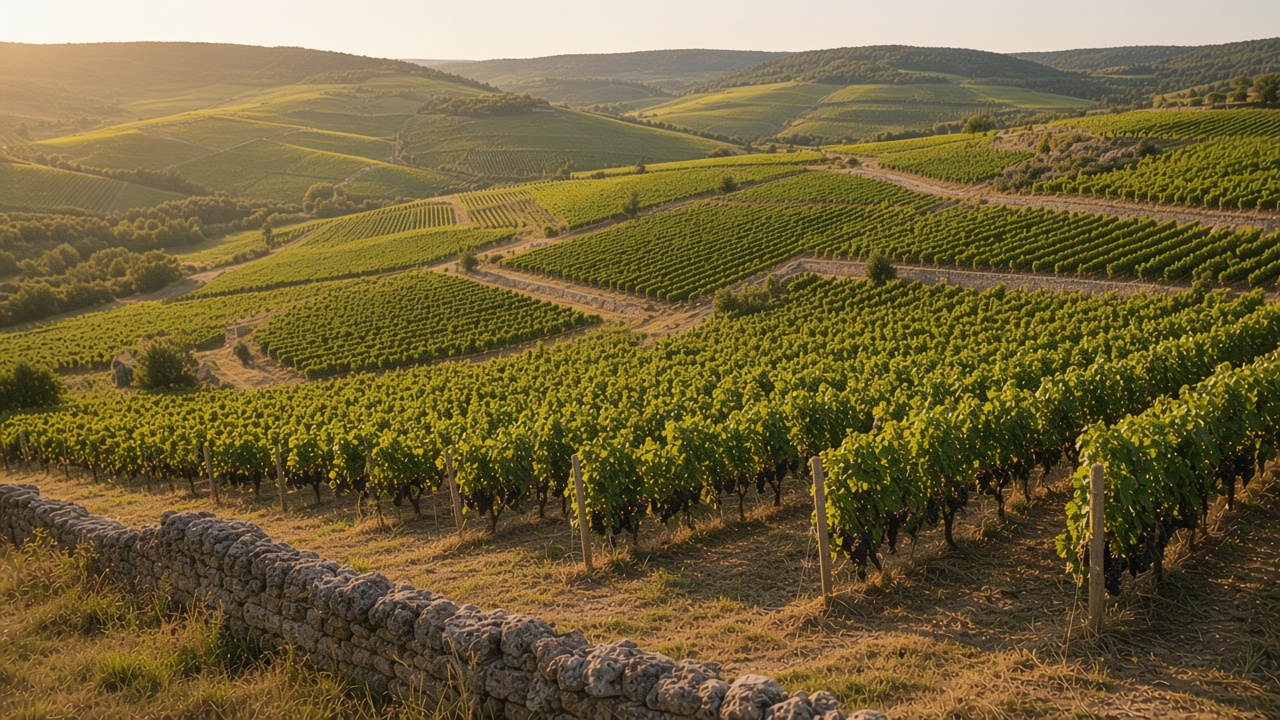
A farm is a name you keep, and the parcels you attach to it. The parcel still has its own outline and its own fiche. The farm is how those parcels are grouped on this account.
You do this on the manage page, not on the map. This note covers that page: the two tabs, cards and table, the farm photo, and what a name opens.
Where it sits
In the app menu, Manage sits next to Portfolio. On a small screen, Menu opens the same links. The page has two tabs: Farms and Parcels.
Portfolio is the map. Manage is the list of farms and the list of parcels as records. A parcel name on the Parcels tab opens the map on that parcel. You come back to the outline from here. You do not draw the outline on this page.
Cards or table
Cards or Table stays the choice of this browser. A phone opens cards. A wide window opens the table. If you switch, that choice remains on this browser the next time you open the page. Another browser on the same account starts from the width of its own window.
Cards are the view for a narrow screen: one farm or one parcel at a time, stacked. The table is the view for a wide window: more rows in sight, less scrolling.
Under the list, Previous and Next change the page. They do not change the tab. Farms and Parcels keep their own page. If you leave the tab and come back, use Previous and Next again to move through that list.
Create a farm
The page title is Farms and parcels. The line under it says to create a farm by name, then choose that farm on a parcel.
Create farm saves a name. The field is Farm name. The name is 80 characters at most. A longer name is refused: use a farm name of 80 characters or fewer. The same name twice is refused: you already have a farm with this name.
That is the whole record at first: a name on this account. There is no outline on a farm. The outlines stay on the parcels. An empty farm list says No farms yet. An empty parcel list says No parcels yet.
A photo can be added on the farm card. The photo is how that farm appears later in the Farm menu on a fiche, in a small circle next to the name. Two farms with close names are easier to tell apart when each has its own picture.
The photo is optional. Add a photo is the control. Change the photo replaces it. The file has to be a JPEG, PNG, or WebP image under 4 MB. A file the page cannot save produces That photo could not be saved. A farm with no photo is still a farm. You can attach parcels to it, and you can add the picture afterwards.
If the list cannot be loaded, the page says so and offers Try again. Loading is the line you see while the list is on its way. Neither one deletes a farm.
Attach a parcel
On a parcel, the Farm menu offers this account's farms, with their photo. Choose one. The parcel keeps its outline, its crop, its dates, and its photos. Only the farm link changes.
A parcel does not have to belong to a farm. No farm yet is the empty fiche line. On this page, No farm is the choice that clears the link. You can leave it until the farm exists. Create the farm first if the menu does not list it yet. The menu does not create a farm from a typed name. Other, on the fiche, is for a crop, a variety, or a fertilizer the list cannot name. It is not a way to invent a farm.
If the farm could not be saved, the page says so. If you follow a farm that is not on this account, the page says that farm is not on this account. Neither message creates a parcel.
Saving the fiche asks for confirmation, the same as any other change on that record.
One parcel belongs to one farm from that menu. To move it, open the fiche and choose the other farm. The previous farm keeps its name and its other parcels.
What a name opens
A farm name opens its parcels. The filter reads Parcels of, then the farm name. All parcels clears that filter and shows the account again. Use the filter when you want the parcels of one farm without scanning the whole account. A parcel that was never attached does not appear there. This farm has no parcels is the empty line for a farm you just created, or for a farm whose parcels were deleted.
The rows can show the name, the crop, the city, and the farm. Previous and Next move by page. The status line is Page, the current page, and the number of pages.
A parcel name opens the map on that parcel. The map centers on it, and you can open the fiche from the list or from the middle of the outline. That is the path from a row on the manage page back to the ground.
Deleting a parcel does not delete the farm. The farm is a separate record. If it was the only parcel on that farm, the farm name remains, with an empty parcel list.
What stays on the parcel
Grouping does not copy the fiche onto the farm. Each parcel still has:
- Its own outline, looked up or drawn by hand
- Its own crop, variety, campaign, and dates
- Its own photos
- Its own walk or Mini 4 Pro pass, if you have run one
Two parcels on the same farm can be a vine and a wheat field. They do not share a crop because they share a farm. The campaign year is per parcel. The planting year, on a vine, is per parcel.
The field surface is also per parcel. Pale squares on one parcel say nothing about the next parcel on the same farm. Open each outline on the map to read its own surface.
What this page does not do
Manage does not start a walk. The 3D button is on the fiche, on the map.
Manage does not register a Mini 4 Pro. That screen is in the account menu.
Manage does not list alerts. Alerts are their own page. An alert names a parcel, not a farm. If you need every alert for one farm, open Alerts and match the parcel names to the parcels that farm opens.
The public site does not show these farms. The manage page is on the app, for the signed-in account. Another account does not see this farm list.